First login and changing your password
Open the system link given to you by the system admin. The login screen appears. Enter the email address or identifier used at your site, then enter your password.
If your account is new, or the admin has reset your password, the system may send you straight to My Profile. Change the password before you continue working.
Change the password from your account
- Open My Profile.
- Open the Security tab.
- Enter Current password.
- Enter New password, then Confirm new password.
- Press Change password.
If the security policy requires two-factor authentication, the system asks you to set it up before you enter the rest of the screens.
What each role sees
| Role | Typical access |
|---|---|
| System admin | All screens and permissions. Can manage settings, licence, logs, users, permissions, assets, tickets, and reports. |
| Support engineer | Sees operation screens such as Tickets, Assets, Buildings, Maintenance, Daily Rounds, and Reports, depending on granted permissions. |
| User | Focuses on Employee Portal, Tickets, Service Catalog, Knowledge Base, their own Assets, Notifications, and My Profile. |
The main menu is split into Operations, Knowledge & Assets, and Management. Whether an item appears in the menu depends on the role or permission.
How an employee uses the Employee Portal
Employee Portal is the employee's starting point. It shows their requests, actions required from them, their assets, available services, useful articles, and the latest notifications.
Open a service request from the portal
- Press New service request.
- Or search in Available services and press the required service.
- The system takes you to the ticket form and may fill in the selected service automatically.
The portal also shows items that need action from you, such as confirming that a ticket was resolved, replying to a technician, or reviewing asset custody.
How to open and follow a ticket
Tickets are the central work record for any fault or service request.
Create a ticket
- Open Tickets.
- Press New ticket.
- Write the Title and Description.
- Choose the Service if the request is linked to a catalogued service.
- Choose the Queue, or leave it automatic if the service sets it.
- Choose Issue type, Priority, Location, Department, and Asset if one exists.
- If extra fields appear under Request data, fill them in. These fields come from the selected service.
- You can attach images only: PNG, JPG, or WebP. The form limit is five images, up to 8MB each.
- Press Send.
Ticket statuses
| Status | What it means in practice |
|---|---|
| New | The ticket is open and no technician has claimed it yet. |
| Assigned to specialist | It has been routed to a technician, and the system is waiting for the assignment to be accepted or rejected. |
| Starting | The technician accepted the assignment. |
| Rejected by specialist | The technician rejected the assignment with a reason. |
| In progress | Work is under way on the ticket. |
| Waiting for user | The team is waiting for a reply or action from the requester. |
| Resolved | The technician documented the fix. It is waiting for the requester to confirm or rate it. |
| Closed | The ticket cycle is finished. |
Claim and route tickets
If you have the Claim waiting tickets or Assign and transfer tickets permission, the Waiting queue tab appears. From there you can claim an unassigned ticket, or select several tickets and use Claim selected.
Routing to a technician is not just changing a name. The system creates an assignment request. The technician sees the Accept and claim or Reject action. On rejection, a short reason must be written.
Comments and attachments
The requester, assigned technician, and manager can add comments to the ticket. Internal notes are available for the team if the permission allows it. Ticket attachments appear in the conversation tab.
Resolution, closure, and reopening
The assigned technician can document the fix when the ticket is Starting or In progress. The resolution text must be clear; the system rejects text that is too short.
When the ticket becomes Resolved, the requester can confirm the fix and rate the service, or send a reopen request with a reason. If the ticket is Closed, someone with ticket management permission can reopen it.
SLA
The system shows the ticket SLA timer when SLA data exists. Settings define First response time and Resolution time for each priority, with working hours and working days.
Search and filters
In Tickets you can search and filter by queue, status, priority, and creation date from/to. You can save a view by name and choose table columns such as queue, status, priority, department, requester, and assignee.
Remote support: sessions, control, voice, security scans and scheduled tasks
Remote support works on devices running the assistant agent, and is shown only to technicians who hold its permissions. If you cannot find it, either it is not switched on for the server or your role does not include it.
The system administrator switches remote support on in the server settings. Voice calls also need a TURN relay configured. Every session and every command is recorded against the technician in the audit log.
Starting a session and controlling the screen
- Open the device from the Control Center or from its page under assets.
- Start a support session. The employee is asked to approve it, and the session waits until they do.
- Once approved you see the employee’s screen. Start in View only and switch to Control when you need the mouse and keyboard.
- For the whole session the employee sees a banner saying a technician is connected. Use End when you are done.
Approval and unattended access
By default every session waits for the employee. Unattended access (for a device nobody is sitting at) needs both a device policy that allows it and the unattended-access permission on the technician. Even then the device shows a banner for the whole session.
Choose the session mode before you start
Before sending a request, choose Attended when the employee is at the device, or Unattended when the required access grants exist. Choose Full control when administrator windows and UAC are needed. You do not need to start a default session, end it, then open a second one to change mode.
Concurrent sessions and resuming work
Leaving the page does not end a session. It stays in My open sessions until you end it explicitly, and a technician can work with more than one device and switch between them. The session list identifies the technician, device, mode, start time, and linked ticket; a permitted supervisor can end a waiting session or another technician's session when necessary, with the action audited.
Voice call
From inside the same session you can start a voice call with the employee. It runs through a TURN relay your organisation operates, over an encrypted configuration; the call button does not appear until that configuration is complete.
Live chat
Messages between technician and employee belong to the session, and the employee replies from the assistant window on their device. Use it to ask permission or explain what you are about to do before taking control.
Terminal commands
Commands run on the device as SYSTEM, which makes them the way to do administrative work that User Account Control (UAC) windows block during screen control. It is a separate, sensitive permission; grant it only to people who need it. The command and its result are kept in the audit log.
Silent security scan
A vulnerability scan does not need a remote-support session or an employee approval prompt. From the device page, use Security scan to run the assistant agent in the background, then filter findings by severity and state. You can schedule a daily or weekly recheck; results compare with the prior scan so you can see what remains open, what was resolved, and what reappeared. The scan needs its own permission and does not grant screen control.
Scheduled tasks
- Choose a device or a device group, then the action and when it runs (once or repeating).
- For a group the system asks you to confirm how many devices are targeted; if that number changes before you save, the request is refused so you can review it again.
- A task moves through Scheduled, Queued, Running, then Succeeded or failed. Devices that are offline when it runs are skipped and listed in the result.
Wake-on-LAN
The server sends a wake packet to the recorded MAC address. Packet sent only means the server sent it; it does not prove that the device booted because Wake-on-LAN has no delivery acknowledgement. Confirm that the device becomes connected or run a later Ping/scan, and verify the device BIOS, network adapter, and local network settings.
How the Service Catalog and ticket queues work
Service Catalog shows the services an employee can request. Choosing a service from the catalogue opens a ticket linked to that service.
A service may be linked to a queue, a target time, and extra request fields. If the user chooses a site, the system narrows the services to what that site or building allows.
Queue management is under Settings, then the service tab. You can create a queue with a name, code, and department, activate or deactivate it, and add members with roles: Viewer, Technician, or Manager.
How to manage assets and devices
Assets keeps the device or asset record: name, type, category, serial number, company, model, technical status, supplier, owning department, location, custody, cost, currency, warranty, network, and notes.
Add an asset manually
- Open Assets, then the History tab.
- Press New asset.
- Fill in the device data. You can scan the serial number with the camera button if the browser allows camera access.
- Choose the Building, then the Precise location when needed.
- Only during creation can you choose the employee receiving custody. When editing an existing asset, changing custody is not done from the same form.
- Press Save asset.
Asset statuses
The statuses in the system are: Active, Assigned to employee, In maintenance, Damaged, Out of service, Missing, Stolen, Disposed/excluded, In stock.
When you choose a status such as out of service, disposed/excluded, damaged, missing, or stolen, a reason field appears. Write the reason because it has operational and audit impact.
Archiving and deletion
The archive button in the register works as a soft operational delete. It keeps the record and history, and may disconnect a linked Agent device so it returns to matching later. Bulk archive shows partial failures instead of hiding them.
Import from Excel or CSV
- Press Import.
- Choose an xlsx or csv file. The upper limit is 1000 rows.
- Review how columns match system fields. You can ignore a column you do not want.
- Press preview. Ready rows, warnings, errors, and duplicates appear.
- Import the valid rows only.
- After import, you can undo the batch. If undo is blocked by later changes, a forced undo option appears with confirmation.
Inventory and discovery
The Discovery tab appears only to someone with permission to view or manage inventory reports. It shows devices discovered by Agent and their link status. Devices that need matching appear as pending items.
Collections
The Collections tab lets you create static or dynamic collections. A dynamic collection updates automatically from filters; you do not add devices to it manually.
You can export assets to Excel and print QR labels. If you do not select assets, the system uses the current filter results within the export and print limits.
How devices connect to buildings and sites
Buildings are the place register. Each building has a name, code, address, number of floors, and notes. Inside the building you add locations such as floor, room, rack, store, or area.
Add a building and its locations
- Open Buildings.
- Press Add building.
- Write the name, code, address, number of floors, and notes.
- After selecting the building, open the Sites tab.
- Add the location with a name, code, floor number, type, and parent location when needed.
The building page does not show locations only. It also shows assets, employees, tickets, maintenance, and services linked to that building, but each part appears only if your permission allows it.
How to carry out Daily Rounds
Daily Rounds are for the technician who passes through devices and locations in a building, floor, or room. The round saves what was checked, faults, notes, and what was escalated to tickets.
Create a round
- Open Daily Rounds.
- Press start new round.
- Write the round title.
- Choose the building.
- Leave the scope as the whole building, or choose a floor, or choose a room inside the floor.
- The system creates the round and loads the devices in that scope.
Round scope
A round can cover a whole building, a whole floor, or one room. In a building round, the system shows items grouped by floor so you can walk through the list like the real place.
Inherited check items
You can create a check item that does not represent a registered device, such as a UPS, electrical panel, or network point. The item can be linked to a building, floor, or room. A room inherits the room's own items, its floor items, and its building items. So an item linked to the building appears in the building's rooms when the round is created.
Carry out the round from a phone
The screen is designed to work from a phone browser. Open the round, then update each item status: Pending, OK, Warning, Fault, or Missing. Write a note when needed.
If you find an unregistered device, add it as an extra check. You can register it later in Assets. If you enter an existing serial number, the system links the check to the existing asset instead of creating a duplicate.
Escalation and finish
If the status is Fault or Missing and no ticket exists, an escalate-to-ticket action appears. The resulting ticket is new, has high priority by default, and is linked to the asset or location if one exists.
When you finish all items, press Finish tour. After finishing, the round cannot be edited. You can open a PDF report or export the round to Excel.
Someone without View all technicians' rounds sees only their own rounds. Managing a round that is not yours needs management permission with permission to view all rounds, or the system admin role.
How to follow maintenance
Maintenance shows maintenance orders and work linked to assets, locations, and tickets. The maintenance record holds the asset, maintenance type, status, description, scheduled date, completion date, implementer, cost, notes, ticket, location, and work hours when available.
Maintenance types in the system are: Preventive, Repair, Upgrade, Periodic check. Statuses are: Scheduled, Implementing, Completed, Cancelled.
Access to this screen needs View all maintenance work, View maintenance work linked to them, or Manage maintenance work.
How to extract reports
Reports collects operational, executive, and analytical reports. General access needs View reports or View dashboard indicators. Printing needs Print reports. Export needs Export reports.
Available reports
- Overview: ticket, asset, compliance, and satisfaction indicators.
- Daily Report: one day of new and resolved tickets, comments, and totals.
- Weekly Report: weekly management summary with executive status and PDF slide export.
- Monthly report: executive monthly summary.
- SLA performance: compliance, breaches, average first response, and resolution time.
- Unresolved tickets: ages of open tickets by 1-3 days, 3-7 days, and more than 7 days.
- User satisfaction: rating averages, distribution, and lowest ratings with comments.
- Technician performance: assigned, completed, in progress, completion percentage, average rating, and resolution time for each technician.
- Asset tickets: assets that generate the most tickets.
- Asset inventory: asset statuses and distribution by type, department, and warranty.
- Employees & departments: employee distribution by role, department, and custody.
- Maintenance work orders: work order status, overdue work, and cost.
- Projects portfolio: project status, progress, budget, and delayed tasks.
- Problems: problem statuses, known errors, and average resolution time.
- Changes & Risks: change requests, risk register, and risk scores.
- Buildings & locations: buildings, floors, locations, and asset distribution.
- Agent devices: discovered Agent devices, system, network, connection status, and matching status.
- Installed software: software names and the number of devices that contain them.
Most reports support choosing a from/to period, and some support a queue filter. Use Excel to export, and Print / PDF to print or save as a PDF file.
How to manage people and permissions
People shows the directory, permission groups, and employee lifecycle actions. Access needs View employee directory or Manage employees and accounts.
Manage an account
Someone with management permission can add an employee, edit their data, reset their password, or delete the account according to permission. On reset, the system shows a temporary password if the server returns one.
Grant permissions
Open the employee account or the access window. You will find direct permissions, groups, and the resulting effective permissions. Direct permissions are added on top of group permissions.
The System admin role grants everything and is not managed through permission groups. Protected permissions such as managing permissions, settings, or logs cannot be granted to an ordinary group.
The Read only group cannot contain any executive permission. It accepts view permissions only.
Main permission groups
- Tickets and support: create, view, update, claim, assign, comment, close, delete, problems, services, and approvals.
- Assets and maintenance: view and manage assets and custody, maintenance, Daily Rounds, inventory, buildings, and locations.
- Projects and governance: projects, changes and risks, policies, calendar, and Knowledge Base.
- Purchasing and finance: suppliers, contracts, purchasing, and budgets.
- People and permissions: employee directory, accounts, groups.
- System and reports: reports, statistics, admin notifications, logs, settings, and reporting a problem in the system to the provider.
Settings, tab by tab
Settings is available to the system admin or to someone with Manage system settings. Some tabs are sensitive because they change security or the licence.
General
Sets the organisation name, notification email, logo URL, primary colour, and maintenance mode. It shows the Smart HelpDesk product identity as a locked identity. There is an install app button if the browser supports PWA.
Organisation
Sets the organisation data used in the system, such as departments, classifications, and organisational values that appear in forms.
Sites
Sets sites or site scopes when the system operates across more than one site. This affects what users see according to their site.
Service
Manages ticket queues and their members, and sets SLA for each priority, working hours, and working days.
Security
Sets who can send a report to the software provider, rate limits, session policy and two-factor authentication, active sessions, and password policy. Loosening a security or password policy needs confirmation and a reason when the reason box appears.
Notifications
Sets notification channels and rules sent to users on assignment, comment, status change, or when an action is required.
Printing
Sets printing and report data such as company name, logo, paper size, and orientation. Reports and asset labels use these settings.
Active Directory
Sets the domain connection, LDAP/LDAPS mode, bind account, user filter, username attribute, and server discovery. It lets you link AD groups to system groups and set a default group.
Telegram
Sets sending alerts through Telegram when this integration is used at the site.
Backup
Creates server backups and shows the latest backups with size and date. You can verify a backup before relying on it.
Licence
Available to the admin only. Shows the version, status, activation, expiry date, installation number, and renewal status with the provider.
Support
A form for reporting a problem in Smart HelpDesk itself to the software provider. It is not for creating an internal ticket about a printer or device.
Licence and activation
Open Settings, then Licence. The licence status appears: active commercial, active trial, expired trial, expired commercial, or invalid licence.
Normal activation
- Enter the serial number in the activate-by-serial field.
- Press activate online.
- If the server cannot reach the provider, use the licence code field as the fallback path.
Offline working window
In the commercial version, the system renews the licence lease daily with the software provider when the provider URL is set. If the connection is lost, the system uses a 30-day grace window from the last renewal. Fields show the last renewal, valid until, and days remaining.
Licence expiry or grace-window expiry does not delete any data. The system moves into read-only mode. Users can log in and read, and the admin can view licence status, activate a new licence, or send a support report.
If the system detects that the server clock has moved backwards, it may enter read-only mode until the problem is fixed.
Report a problem to the software provider
Use Support when there is a problem in Smart HelpDesk itself, such as a screen error or a broken function. Do not use it for internal device reports; those are opened from Tickets.
What leaves the customer server when you send the report is: the title you wrote, the text you wrote, the application version, and the installation number. The system does not silently send tickets, assets, employee names, or other work data.
Sending may be available to everyone, to someone with Report a system problem to the software provider, or closed entirely. The admin controls this from the security tab.
This form remains available even in read-only mode caused by the licence, because the licence problem itself may need to be reported.
Backup
From Settings, then Backup, the admin can create a backup now. The screen shows the latest 20 backups present on the server with their size and date.
Use Verify to check the backup. When the check succeeds, the system shows the number of migrations or the structure it was able to read from the backup.
The user interface does not show a direct restore-from-backup button. If you need a restore, follow the approved operating procedure used by the infrastructure team or system provider.
Projects, from idea to delivery
A ticket handles one thing and closes. A project is extended work with a start, an end, a budget, and a team, made up of many tasks that depend on each other. The Projects tab is for the second case.
Access to this tab is limited to manager and technician/agent, and needs projects.view to view or projects.manage to edit. An ordinary employee does not see the tab at all.
The screenshots in this manual are from the Arabic interface. The layout is the same, but button and tab labels in your English installation use the English words shown in this text.
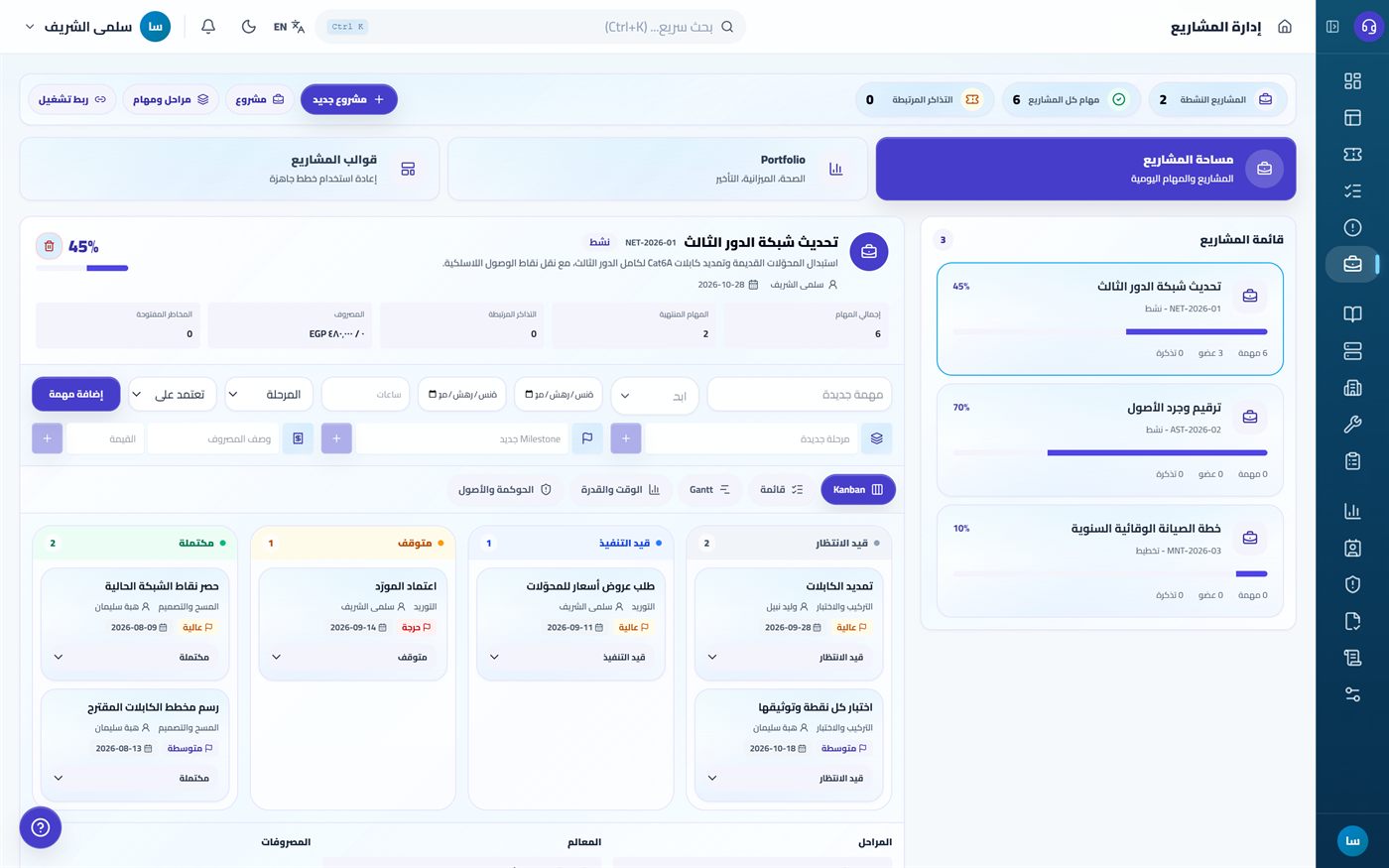
The three areas at the top of the page
- Projects workspace - daily work: project list, tasks, phases, and milestones.
- Portfolio - a high-level view of all projects together: how many active projects, how many are at risk, and total budgets.
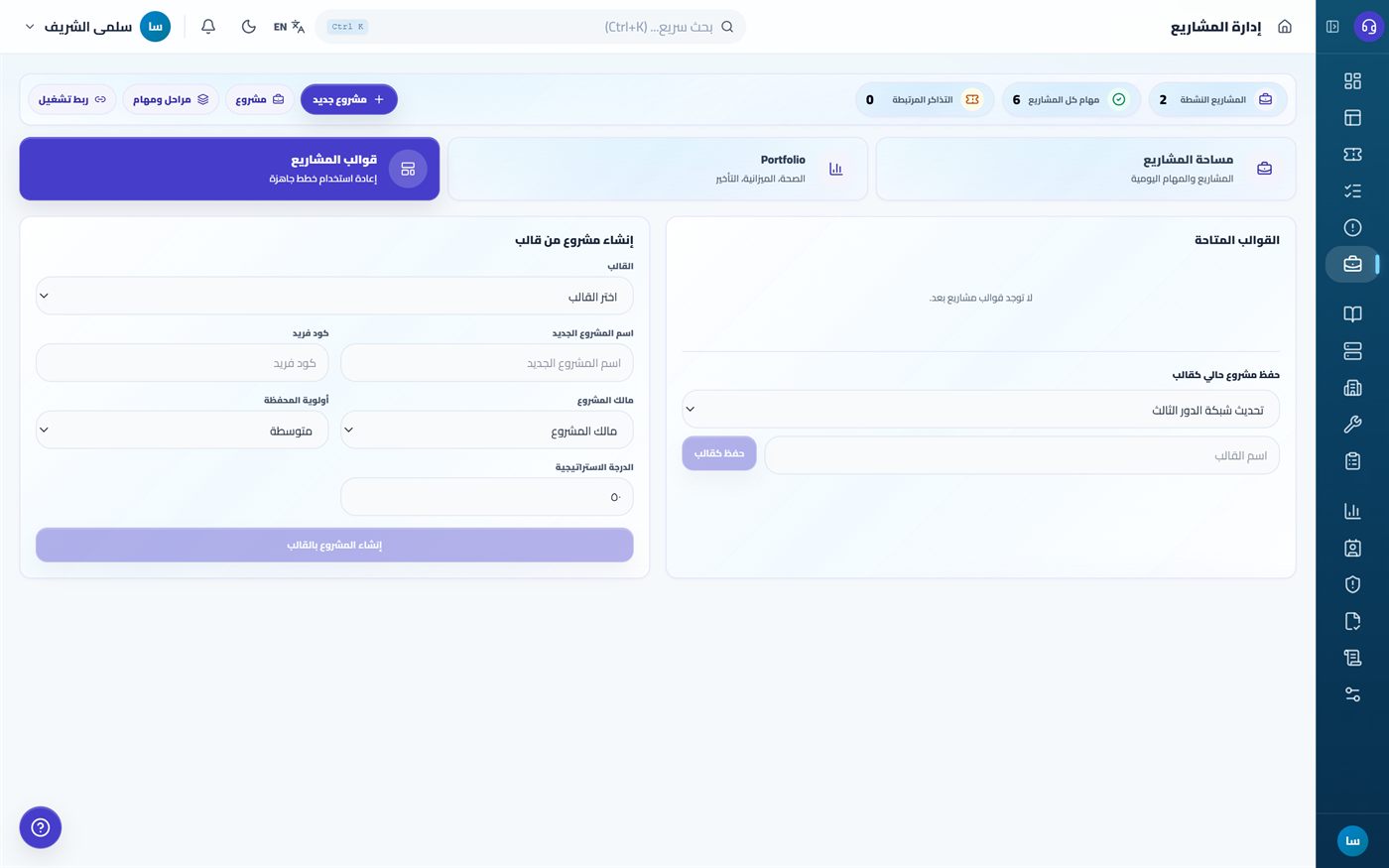
- Project templates - a ready plan reused for a similar project instead of rebuilding it each time.
The numbers in the top strip
Active projects, All project tasks, and Linked tickets. The third number is the link between projects and daily operation: the number of open tickets assigned to a project.
Create a project
- Press New project.
- Write the Name and Code. The code is a short fixed identifier, such as NET-2026-01, that makes it easier to refer to the project in tickets and reports.
- Set the Owner, Sponsor, and Department.
- Set the Start date, End date, Budget, and currency.
- Choose the Priority (low/medium/high/critical) and Location if the project belongs to a specific branch.
Phases, tasks, milestones: three different things
- Phase is a large time division (survey and design -> supply -> installation and testing). It has an order and a status: planned, active, completed.
- Task is work assigned to a person with a due date and estimated hours. Its status is: pending, implementing, inactive, completed. A task belongs to a phase and may depend on another task.
- Milestone is a point in time with no work inside it, a moment where progress is measured (design approval, supply arrival). Its status is: waiting, verified, missed.
The task board shows the four columns side by side. The Inactive column matters in practice: an inactive task means something outside the implementer's hands is blocking them, and it is the first thing the project manager should read every morning.
Members and allocation percentage
Every project member has a Role, Allocation percentage, and Weekly hours. The percentage is not decorative: it lets the system say that a technician allocated 70% to one project and 60% to another is really loaded at 130%.
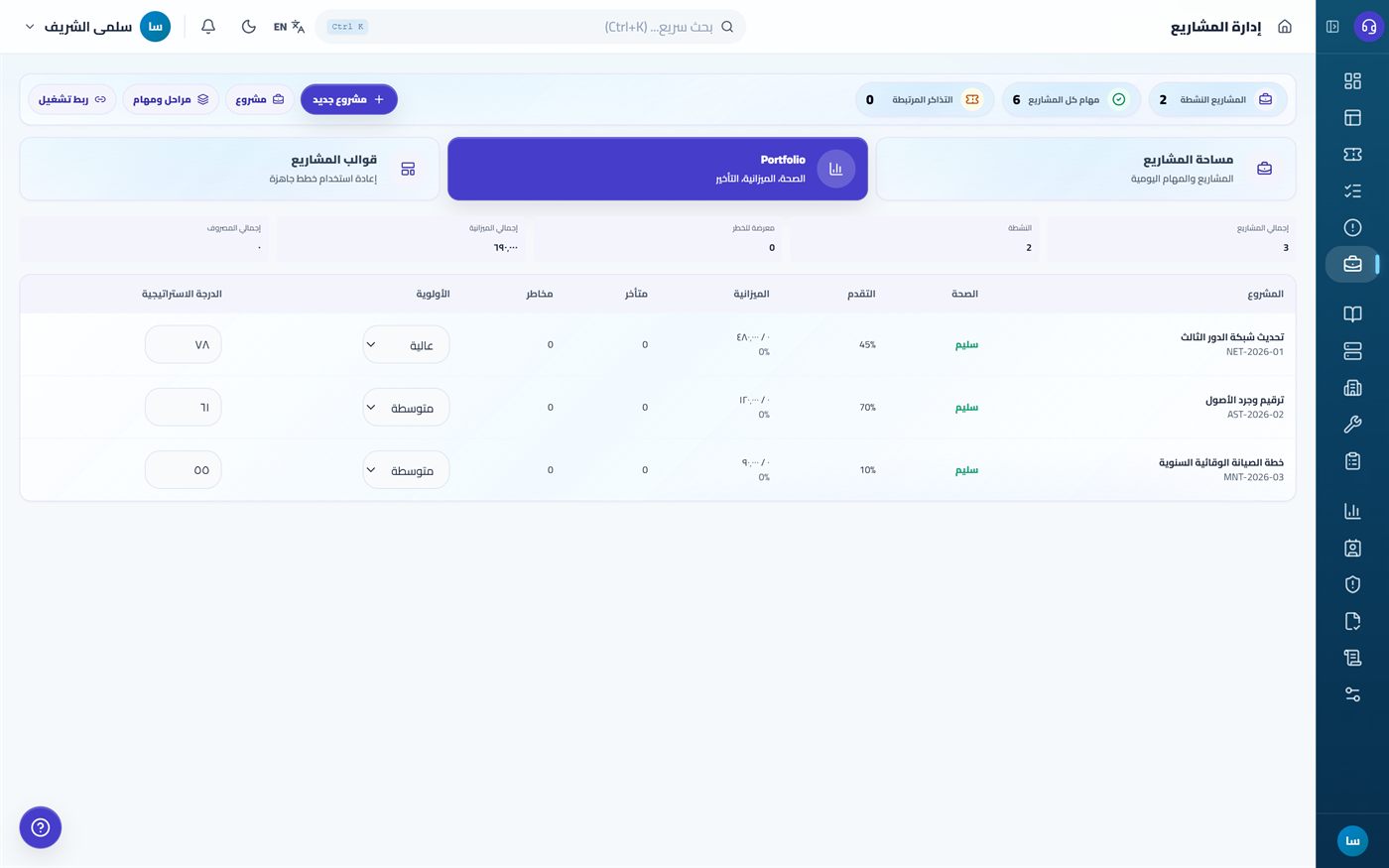
Link the project to operations
A ticket can be assigned to a project. This makes the difference between "many tickets about the network" and "tickets resulting from the network upgrade project" visible in reports, and keeps project work from being counted as daily operational faults.
Service and ticket: what is the difference?
This is the most common question when starting operation, and confusing the two damages reports more than it damages the work.
| Service request | Fault report (ticket) | |
|---|---|---|
| Situation | You want something new that did not exist | Something was working and stopped |
| Example | A computer for a new employee, opening an access permission | The printer does not print, the air conditioner is leaking |
| Approval | May be required, and is set in the service itself | None. A fault does not ask permission to happen |
| Duration | A declared resolution time for each service | According to priority and the service-level agreement |
| Form | Specific fields filled in when requesting | Free description of the fault |
In practice: the service is a template, and the ticket is the executed copy. The service is defined once in the catalogue with its information, duration, and path. Every time an employee requests it, a ticket is generated and linked to it. That is why both requests appear in My tickets; the difference appears in the ticket type and in whether a service is linked.
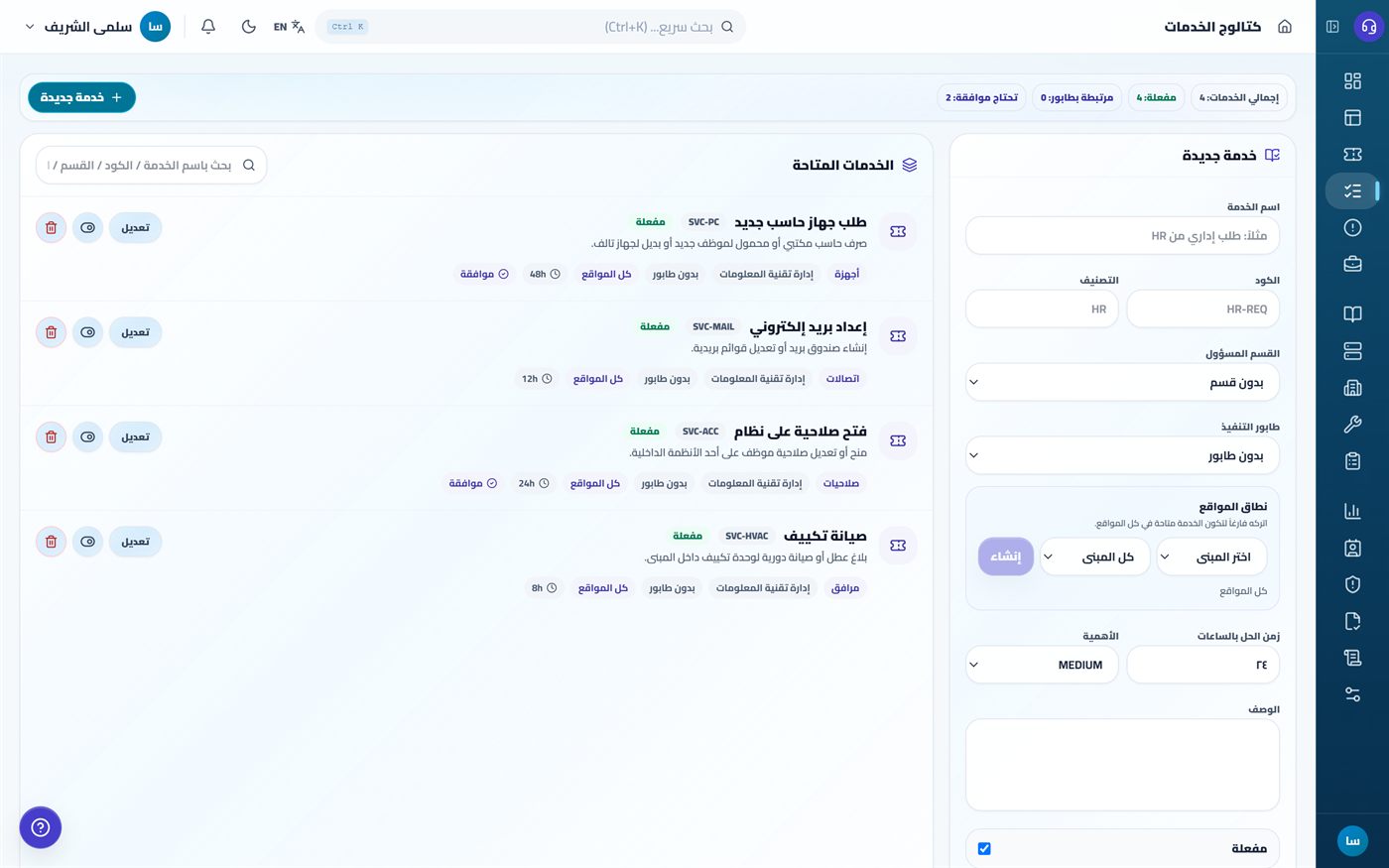
What you set in one service
- Name, code, and classification - what the employee sees and what reports use for classification.
- Owning department and Delivery queue - where the ticket goes automatically. A service with no queue goes to the general queue and needs manual routing.
- Location scope - leave it empty to make the service available at all sites, or choose specific buildings. "Air conditioning maintenance" in a building with no central air conditioning is an item that confuses the employee without benefit.
- Target hours - a declared promise, not an internal estimate. The employee sees it before requesting.
- Criticality and Need approval - approval adds a step before delivery starts.
Knowledge Base, and why it reduces tickets
The Knowledge Base is short articles that solve repeated problems before they become tickets. Its real value is not archiving; it is three things:
- Reducing repeated tickets. "The printer is not responding" repeats dozens of times each month. A four-step article solves some of those without opening a ticket.
- Unifying the answer. Three technicians answer the same question in three different ways. The article makes the answer one.
- Transferring knowledge when the team changes. What a technician with two years of experience knows stays in the system after they leave.
How to write a useful article
- Write the title in the problem wording the employee uses, not the technical wording: "The printer is not responding" is better than "Troubleshooting print queue faults".
- Use numbered steps that can be followed without terminology.
- End with the point where the employee should stop and open a ticket, and what information they should include in it.
- Add Tags using the words people actually search for.
An article has two statuses: Draft and Published. Only published articles appear to employees. The Useful / not useful counters are the fastest way to know which articles need rewriting.
Inventory agent: how it works and how to install it
The inventory agent is a small program installed on computers. It sends the system what is on the device: name, serial number, manufacturer, model, operating system, network address, and current user. Its purpose is to stop inventory being an annual round with paper and pen.
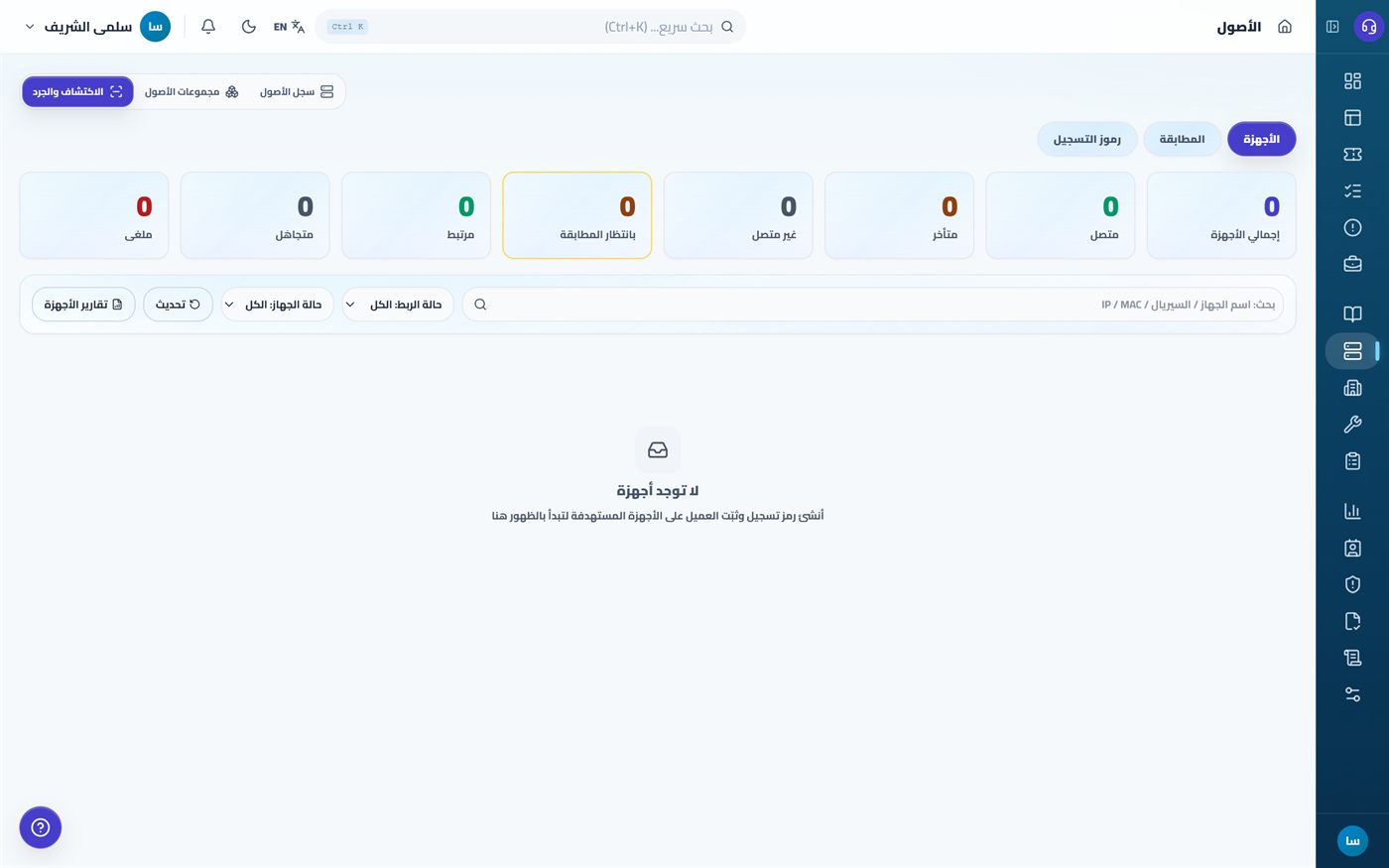
The three tabs
- Devices - every device that sent its data, with status: connected, late, offline.
- Matching - the step that links a discovered device to a registered asset in the asset register. Statuses are: Pending match, linked, Ignored.
- Enrollment tokens - the tokens used by the installer so the device can identify itself the first time.
Discovery does not create assets automatically. The device appears as Pending match until someone links it to an asset or ignores it. This is deliberate: automatic linking fills the asset register with guest devices and test devices.
Install the agent: manual method
- From Assets → Discovery and inventory → Enrollment tokens, create a token. This needs the inventory.manage permission.
- Set the label (a description that explains the purpose), the type - single use or limited by count - the validity (a near expiry date that only covers the deployment window), and the location if the devices belong to a specific branch.
- The token is shown once only when it is created. Copy it immediately. It cannot be recovered afterwards, and it is stored in the system as an encrypted fingerprint, not as text.
- Run SmartHelpDeskAgentSetup.exe on the device and enter the token and server address.
- The device appears in Devices within minutes, then link it from Matching.
Deploy domain devices through GPO / MSI
From Enrollment tokens, use GPO / MSI only. It creates a customer-specific MSI rather than exposing an enrollment credential in a script or command line.
- Enter a clear package label and the real HTTPS server URL used by devices. Do not use an IP address that the server certificate does not cover; the system stops generation rather than issue an agent that cannot verify its server.
- Set a device limit and an expiry close to the deployment window, and choose a location if required. The embedded credential is limited and revocable; it is not shown as plain text in Group Policy.
- Download the MSI and put it on a network share readable by computer accounts, not only users.
- In Group Policy Management, go to Computer Configuration → Policies → Software Settings → Software installation and assign the package to computers.
- Test with a small OU first, then watch the Devices tab and link discovered devices under Matching.
Domain connection (Active Directory)
Go to Settings → Active Directory. The purpose is for employees to log in with the same domain account instead of a separate account with another password.
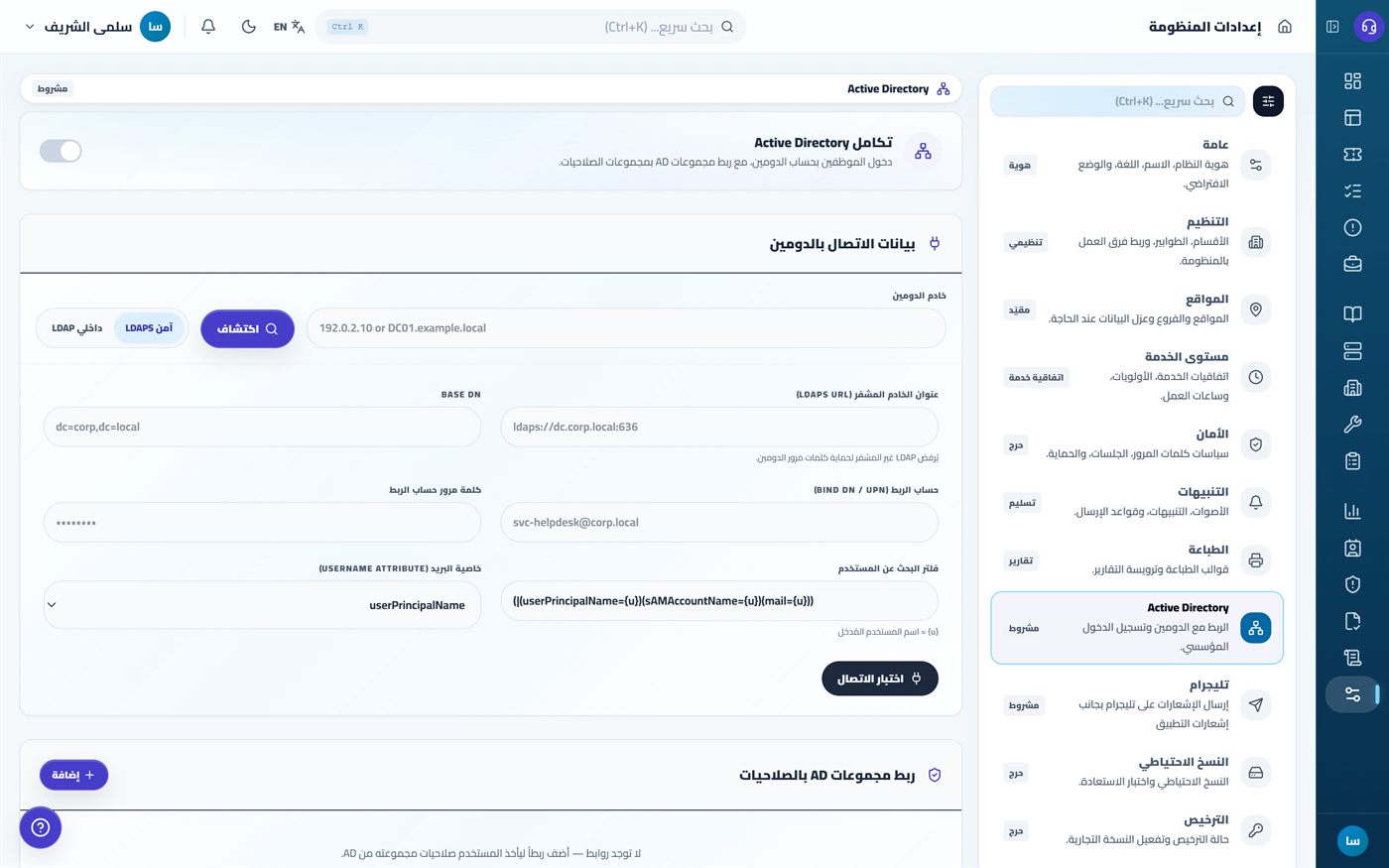
The Conditional label on this tab means it does not work unless its conditions exist: a real domain, and network access from the system server to the domain controller. The system works completely without it using local accounts.
The bind account used for connection must be a dedicated read-only account for this purpose, not a domain admin account. Changing its password later stops login for all linked users, so include it in what you review when rotating passwords.
Expected problems and fixes
I cannot log in after a password reset
The system forces a password change after reset and sends you to My Profile. Complete the change before anything else. After five failed attempts, the account is locked temporarily. Wait, or ask the admin to unlock it.
The employee does not see a service in the catalogue
There are three causes, in order: the service is inactive; its location scope does not include the employee's site; or the employee does not have permission to view services. Check them in that order.
Tickets arrive with no owner
An unassigned ticket means the service or classification is not linked to a queue. Set the Delivery queue in the service, and make sure the queue has members. A queue with no members silently swallows tickets.
A device has the agent installed but does not appear
- Make sure the device can reach the server address from the internal network.
- Make sure the enrollment token has not expired and its usage count has not been consumed.
- Check the Matching tab: the device may already have appeared and be waiting to be linked, or may already have been placed in Ignored.
The system moved to read-only mode
This is a licence state, not a fault. Open Settings → Licence and you will find the reason: the trial expired, or more than 30 days passed without a successful licence check because the internet was disconnected. Reconnect, then press Renew now, or enter a new activation serial.
The time in reports is wrong
The server clock is the reference. If the server clock is late or ahead, SLA times and reports are both affected. Set time synchronisation on the server, not on employee devices.
The numbers in the report do not match what I see in the list
This is usually because of the location scope selected at the top of the screen: the list shows one site and the report shows the whole organisation, or the reverse. Use the same scope before comparing.
Notifications do not arrive
Check in this order: notification preferences in My Profile, then Quiet hours if set, then the general alert settings. If you use Telegram, a missing chat ID makes sending fail silently.